Registering your SolidWorks products nowadays is pretty simple – hit the activate button, wait a few seconds, and you’re golden. This applies to network license servers as well as standalone seats. Per the End User License Agreement (affectionately known as the EULA), each SNL is allowed 1 server activation and each standalone is allowed 2 activations. For the standalone seat, that is typically 1 office and 1 home or mobile computer, such that they are never running the software simultaneously.
It is equally as simple to un-register or de-activate the software as it is to activate. For a standalone seat, go to the Help menu in SolidWorks and select “transfer license.” On a license server, launch the SNL Manager and, from the Server Administration tab, hit the Modify button and choose to transfer. Common reasons to do this:
• PC will be replaced or reformatted
• SolidWorks will no longer be used on that machine
• License server is being moved or virtualized
• Standalone seat needs to be installed elsewhere (without necessarily uninstalling from this machine; may need it down the road)
This proactive measure of de-activating will prevent you from receiving an “Activation Transaction Failed!” message saying that your activation count has been exceeded in the next activation attempt. There are cases, of course, when you can’t avoid this. If a machine dies unexpectedly, there would be no opportunity to transfer the license. In this event, please contact Technical Support with your serial number and we will gladly transfer the license for you.
Monday, July 25, 2011

Tuesday, May 10, 2011
Windows 7 Tips

Windows 7 Tips
By Ryan Zeck
Todays blog focus is going to be on some of the tips I use on a continual basis regarding Windows Operating System. Most of these tips will be general to any Windows OS, but some will be just for Windows 7.
Before I get into any tips, everyone should know a major difference between Windows 7, XP and Vista. Have you ever been working on your computer and all of a sudden you see a window open that says “program not responding?” If so, you it typically means the program is locked up and should be restarted. However the amount of time from each of the operating systems has changed DRASTICALLY. If you get that message in Windows 7, you may want to select, “wait for program to respond.” Any ideas on how long it took before warning you in XP? It was 30 seconds. How about for Windows Vista? It dropped to 10 seconds. Windows 7 dropped to 3 seconds. So it might be prudent to wait a bit longer before “aborting” your program just because the computer thinks you should.
Okay, now that we have that out of the way, the first tip I would like to talk about is the ability to get to your files faster. Who uses windows explorer? I think everyone has or does use this quite a bit. A quick way to open this is to press two keys simultaneously. They are the “windows” key and “e.” See the image above. When you do press these at the same time, then it will open windows explorer and take you to the computer level showing your different disks.
Another good one is “windows” and the “d” key which will minimize every open program and show you your desktop. Press “windows + d” again and it restores the size of all your programs. This is useful if you need to access a shortcut or folder on your desktop or if your boss walks by and you are playing solitaire. ;)
The following are a list of keys and their functions:
Windows+L: This will lock your screen so if you leave your computer for a moment; you don’t have to worry about someone getting on it.
Windows+Tab: This is better than the Alt+Tab (only works for Windows 7): This gives you a 3D preview of each program you have open unlike just using Alt+Tab which cycles through the open programs while showing you a flat picture of it.
Windows+Pause: This will open all the system information about your computer. Very useful if you are trying to see how much RAM, the speed of the processor, or see what the computer name.
Windows+r: Doing these two keys opens the run dialog and will allow you to start a command prompt (by typing cmd), edit the registry (not recommended), or restart a program.
Alt+F4: Press this to close the active program on your desktop.
Control+z: One of my favorites, its typically undo in any program.
I hope you enjoyed these tips and if you find some more, feel free to email me at
rzeck@trimech.com or find me on Linked In at http://www.linkedin.com/in/ryanzeck
Monday, April 11, 2011
SolidWorks Multibody Environment
By: Rob Stoklosa
For this month’s Blog, let me present to you this scenario….
Let’s pretend we work at ACME Table Company. We make simple particle board tables. Our assemblies are usually comprised of 4-8 parts: the table top, legs, and maybe a bracket or two. For the advanced model, we add in some nice molding to the outside of the table top. Simple……RIGHT!?!
If I asked you to create such an assembly:
• How would you go about it?
• How long would it take you?
• How many files would you have to manage?
• How easy would it be to apply a design change?
I normally present this question at the end of my SolidWorks Essentials class. The common and correct answers, given the curriculum the students were just fed, are:
• I would create a bottom-up assembly. (Sometimes top-down if the student is slightly advanced)
• Maybe an hour…..max.
• Roughly? 6-8 part files and 1 assembly. Let’s say 7 files not including drawings.
• SolidWorks makes accomplishing design changes easy. I would just update the part and let SolidWorks handle the rest.
These are all great answers and clearly demonstrate the reason that many people move from 2-D to 3-D in the first place. But can we do this even faster and smarter (and cooler)? YES!
If you are not familiar with the term “MultiBody” , I recommend you spend a little time researching it. In the TriMech Advanced Parts class, we teach just how important and powerful this environment can be. In a MultiBody Part, effectively each “component” is a solid body. Utilizing the MultiBody workflow allows you to go outside the standard process that has become renowned in 3D Parametric modeling where:
• We create individual parts
• We assemble the parts (making sure to define all degrees of freedom)
• We accept the fact that we will have many files to control
What if I could create, relate, and define all my components in one part file?
Well, with Mulitbodies, you can!! But wait, there’s more. Not only can you create, relate and define, you can also assign materials to each body so SolidWorks can calculate accurate mass properties. We can effectively make use of the sheet metal tools, then toggle over to the weldment tools, and then go back to the standard part environment to create a swept cut!
I can generate a BOM or material list, and if required, each solid body can be exported into its own individual file! I know, it’s not the Sham-Wow, and this will not enable us to soak up spills, but multibodies are still very useful.
So, if asked again to create this standard offering from the ACME table company, I might reply with these answers if I considered using multibodies vs. standard SolidWorks modeling techniques.
• I would create a MultiBody part in SolidWorks.
• 20 minutes
• 1….yes I said 1 file
• If you can edit a sketch, and/or edit a feature, you can change this design in seconds.
I hope this encourages you to look into using MultiBodies. This example barely scratches the surface of their magical powers.
Your local friendly TriMech sales rep can provide you with course curriculum and upcoming dates for the Advanced Parts training class. You can also check training on our website to see all of the upcoming dates and locations for Advanced Parts Training.
For this month’s Blog, let me present to you this scenario….
Let’s pretend we work at ACME Table Company. We make simple particle board tables. Our assemblies are usually comprised of 4-8 parts: the table top, legs, and maybe a bracket or two. For the advanced model, we add in some nice molding to the outside of the table top. Simple……RIGHT!?!
If I asked you to create such an assembly:
• How would you go about it?
• How long would it take you?
• How many files would you have to manage?
• How easy would it be to apply a design change?
I normally present this question at the end of my SolidWorks Essentials class. The common and correct answers, given the curriculum the students were just fed, are:
• I would create a bottom-up assembly. (Sometimes top-down if the student is slightly advanced)
• Maybe an hour…..max.
• Roughly? 6-8 part files and 1 assembly. Let’s say 7 files not including drawings.
• SolidWorks makes accomplishing design changes easy. I would just update the part and let SolidWorks handle the rest.
These are all great answers and clearly demonstrate the reason that many people move from 2-D to 3-D in the first place. But can we do this even faster and smarter (and cooler)? YES!
If you are not familiar with the term “MultiBody” , I recommend you spend a little time researching it. In the TriMech Advanced Parts class, we teach just how important and powerful this environment can be. In a MultiBody Part, effectively each “component” is a solid body. Utilizing the MultiBody workflow allows you to go outside the standard process that has become renowned in 3D Parametric modeling where:
• We create individual parts
• We assemble the parts (making sure to define all degrees of freedom)
• We accept the fact that we will have many files to control
What if I could create, relate, and define all my components in one part file?
Well, with Mulitbodies, you can!! But wait, there’s more. Not only can you create, relate and define, you can also assign materials to each body so SolidWorks can calculate accurate mass properties. We can effectively make use of the sheet metal tools, then toggle over to the weldment tools, and then go back to the standard part environment to create a swept cut!
I can generate a BOM or material list, and if required, each solid body can be exported into its own individual file! I know, it’s not the Sham-Wow, and this will not enable us to soak up spills, but multibodies are still very useful.
So, if asked again to create this standard offering from the ACME table company, I might reply with these answers if I considered using multibodies vs. standard SolidWorks modeling techniques.
• I would create a MultiBody part in SolidWorks.
• 20 minutes
• 1….yes I said 1 file
• If you can edit a sketch, and/or edit a feature, you can change this design in seconds.
I hope this encourages you to look into using MultiBodies. This example barely scratches the surface of their magical powers.
Your local friendly TriMech sales rep can provide you with course curriculum and upcoming dates for the Advanced Parts training class. You can also check training on our website to see all of the upcoming dates and locations for Advanced Parts Training.
Monday, February 21, 2011
Did you know?
by Adam Baker
When blogging, I try to reach back into the mind of the blog reader to determine what they yearn to read. If you are reading this blog it may be for a variety of reasons including (but not limited to)
• mental break from work
• gain insight via social media
• accidental search engine mishap
• Curiosity as to what the big "B" was on the bottom of the TriMech website.
At any rate, I'm going to give you a random series of "Did you Knows" this morning. Some deal with products and solutions we sell, some with our company. I'm hoping at least one of these is something you didn't know before but you wish you did. Hopefully, this will be entertaining and enlightening....but no promises.
So, without further ado, Did you know....
1. TriMech Solutions has over 3000 Clients it services? That's right. Our offices from Pittsburgh to Atlanta work with over 3000 companies. The cool thing about being involved with so many companies as an Engineer here is that you get to see a lot of different processes and products. After working for TriMech as an Engineer for over 7 years, I never take for granted the products I interact with on a daily basis as EVERYTHING has some rhyme or reason as to why it was designed the way it is.
Look around you right now and pick just one object-maybe a tape dispenser or hole punch. How was it created? Were there manufacturing reasons the design was made the way it is, or does the design have more of an influence from aesthetics? (or is it a cheap as we can build it model?)
2. SolidWorks 2011 was the 19th release of the software ? SolidWorks began in 1995 with the release of SolidWorks 1995. For those of us that were around for the first few releases, there have been significant changes to the product over the years. My first experience with SolidWorks began with SolidWorks 97 plus. I remember having to be very deliberate about the way you created sketches and features. Now the software is much more forgiving. These young whippersnappers have it so much easier today, I can remember having to design in the snow uphill both ways barefooted…..but I digress.
3. TriMech employs over 50 people, and 40% are engineers? The owners of TriMech always felt strongly about having a technical team to support the products and solutions they offered. 5 dedicated Engineers on staff focus 100% on answering tech support calls. The rest of us are there to
• Help with local client support
• Train classes
• Demonstrate products to prospective prospects and existing clients
• Assist clients with project-based Service Work
So, just a few “Did you Knows” on a Monday morning. Come back soon for our next exciting blog entry and as always feel free to reach out to us via email at info@trimech.com with any specific questions we can assist you with.
When blogging, I try to reach back into the mind of the blog reader to determine what they yearn to read. If you are reading this blog it may be for a variety of reasons including (but not limited to)
• mental break from work
• gain insight via social media
• accidental search engine mishap
• Curiosity as to what the big "B" was on the bottom of the TriMech website.
At any rate, I'm going to give you a random series of "Did you Knows" this morning. Some deal with products and solutions we sell, some with our company. I'm hoping at least one of these is something you didn't know before but you wish you did. Hopefully, this will be entertaining and enlightening....but no promises.
So, without further ado, Did you know....
1. TriMech Solutions has over 3000 Clients it services? That's right. Our offices from Pittsburgh to Atlanta work with over 3000 companies. The cool thing about being involved with so many companies as an Engineer here is that you get to see a lot of different processes and products. After working for TriMech as an Engineer for over 7 years, I never take for granted the products I interact with on a daily basis as EVERYTHING has some rhyme or reason as to why it was designed the way it is.
Look around you right now and pick just one object-maybe a tape dispenser or hole punch. How was it created? Were there manufacturing reasons the design was made the way it is, or does the design have more of an influence from aesthetics? (or is it a cheap as we can build it model?)
2. SolidWorks 2011 was the 19th release of the software ? SolidWorks began in 1995 with the release of SolidWorks 1995. For those of us that were around for the first few releases, there have been significant changes to the product over the years. My first experience with SolidWorks began with SolidWorks 97 plus. I remember having to be very deliberate about the way you created sketches and features. Now the software is much more forgiving. These young whippersnappers have it so much easier today, I can remember having to design in the snow uphill both ways barefooted…..but I digress.
3. TriMech employs over 50 people, and 40% are engineers? The owners of TriMech always felt strongly about having a technical team to support the products and solutions they offered. 5 dedicated Engineers on staff focus 100% on answering tech support calls. The rest of us are there to
• Help with local client support
• Train classes
• Demonstrate products to prospective prospects and existing clients
• Assist clients with project-based Service Work
So, just a few “Did you Knows” on a Monday morning. Come back soon for our next exciting blog entry and as always feel free to reach out to us via email at info@trimech.com with any specific questions we can assist you with.
Monday, February 7, 2011
SolidWorks World Recap
by Evan Fader
Less than one week from SolidWorks World and I am already excited for SWW12.
As a VAR participant at SW World I was previewed to a bit more than the average user, but only by a day or two. There are a few things coming down the pipe that we can get excited about; one will be here very soon.
No, Dassault Systems did NOT announce SolidWorks running on a Mac, though I did notice that SolidWorks employees all had iPhones and many had an additional iPad to match. There was, however, the continued talk of running SW in the "cloud", which means that for you Mac users, there may be light at the end of the tunnel. Running SW in the "cloud" does cause for concern for many users, but don't worry, SolidWorks made sure we all are aware of the fact that users will NEVER lose the ablity to have SW run locally.
Speaking of running in the "cloud", SolidWorks announce their first cloud base product will be available for purchase later this year. What product is this you ask.... formerly called SolidWorks Product Data Sharing, then later SolidWorks Connect, and now, finally n!Fuse.
Based on the previous names I am sure that you can guess what the product does. You guess it....PDM. A web based PDM meant to collaborate with suppliers, manufactures, customers, colleagues, or who don't have access to company files. n!Fuse plugs right into SolidWorks so you can upload your file right inside SW. You can attach comments and see the entire comment chain. No more sorting through old emails looking for the history of your design. You can access n!Fuse outside of SolidWorks in most internet browsers, to preview and download files. Though unlike Enterprise, previewing files will only give you a 2D image. Creating workspaces for people you want to have access to the files looks to be easy to set up and manage.


Less than one week from SolidWorks World and I am already excited for SWW12.
As a VAR participant at SW World I was previewed to a bit more than the average user, but only by a day or two. There are a few things coming down the pipe that we can get excited about; one will be here very soon.
No, Dassault Systems did NOT announce SolidWorks running on a Mac, though I did notice that SolidWorks employees all had iPhones and many had an additional iPad to match. There was, however, the continued talk of running SW in the "cloud", which means that for you Mac users, there may be light at the end of the tunnel. Running SW in the "cloud" does cause for concern for many users, but don't worry, SolidWorks made sure we all are aware of the fact that users will NEVER lose the ablity to have SW run locally.
Speaking of running in the "cloud", SolidWorks announce their first cloud base product will be available for purchase later this year. What product is this you ask.... formerly called SolidWorks Product Data Sharing, then later SolidWorks Connect, and now, finally n!Fuse.
Based on the previous names I am sure that you can guess what the product does. You guess it....PDM. A web based PDM meant to collaborate with suppliers, manufactures, customers, colleagues, or who don't have access to company files. n!Fuse plugs right into SolidWorks so you can upload your file right inside SW. You can attach comments and see the entire comment chain. No more sorting through old emails looking for the history of your design. You can access n!Fuse outside of SolidWorks in most internet browsers, to preview and download files. Though unlike Enterprise, previewing files will only give you a 2D image. Creating workspaces for people you want to have access to the files looks to be easy to set up and manage.
How much you ask..... well I am not that SW has set the price firm yet but lets just say it is so low that I am unsure that SolidWorks can even make a profit. Maybe that is not the point though.

My first thought when I heard about n!Fuse was that it was going to replace Enterprise or that it was going to be very much like Enterprise only web based. No, that is not the case. n!Fuse is a very basic PDM tool, but I still am very excited to help our clients with this very affordable product.
As I said before this is going to be released later this year, which you can be a beta tester by contacting nFuzeBeta@solidworks.com. Just send your name, company name, and contact information, and when the beta program is ready to start, they will contact you with program details and instructions.
I just sent mine in, you should too.
Oh, if you’re wondering where SolidWorks World 2012 will be.....
drum roll please…..
…San Diego, CA.
Friday, February 4, 2011
Free is for ME!
by Ryan Zeck
PART 2 OF 2 BY RYAN ZECK
I’m back for the second round of free programs to make your life easier! This go ‘round we will explore a few pieces of software that will impress your friends and co-workers. Last time we talked about Synergy, Search Commands, and Speed Launch. Today I would like to expose programs named Duplicate Cleaner, Chrome, and Google Voice. All of which are FREE!
PART 2 OF 2 BY RYAN ZECK
I’m back for the second round of free programs to make your life easier! This go ‘round we will explore a few pieces of software that will impress your friends and co-workers. Last time we talked about Synergy, Search Commands, and Speed Launch. Today I would like to expose programs named Duplicate Cleaner, Chrome, and Google Voice. All of which are FREE!
Let’s get it started by taking a look at Duplicate Cleaner. From time to time you might create some back up files in a different location, say on the server or on an external hard drive. Then later you might modify (on accident, of course) the backup copy and not the original. So how do you tell which one is which? That’s easy right?
Of course it is for one file, it’s a simple RIGHT CLICK, properties or look at the details of the files and compare them. However what happens if you have thousands of files and you don’t remember which one you have change and which you haven’t? Now what? Well that’s where Duplicate cleaner can help out.

The interface is straight forward and easy to understand. Tell it where you want to look for duplicates and it will go and find pairs of files. How does it know which is a duplicate? You must tell it the kind of search criteria to use. You have several options: content, file name, size, or date. You also can use a file type filter (see image). You can find the download here:
Do you ever browse the internet? Ok, dumb question since you are reading this on the internet, but what program are you using? Internet Explorer? Safari? Firefox? How about Chrome? Everyone should know about the browser Microsoft offers called Internet Explorer, but have you ever heard of Google Chrome? Now I must admit I haven’t used Internet Explorer for several years now but only recently, made the switch to Chrome.
During the transition period between IE to Chrome I used Mozilla Firefox. Firefox has a ton of great features and even more add-ins, but it had several drawbacks that pushed me to look elsewhere. One of the problems was how slowly it loaded every time I wanted to start it. It wasn’t something I ever realized until I started using Chrome. Chrome loads almost instantaneously. You can find the download here: Google Chrome
Another issue I had with Firefox was the inability for it to handle my Google Voice add-in. Google Voice you ask? Well that is the next program I would recommend.
Google now offers phone numbers to whoever wants one for FREE. The phone number is yours after you get to choose what number you want. The best thing about Google Voice (along with Chrome) is an add-in (which is also free) that turns every phone number in your browser into a hyperlink. When you select the hyperlink a couple things happen. One thing is it calls the phone of your choice (i.e. your office phone, cell phone, or your computer through Gtalk) and then it dials the phone number that you clicked! It’s like having a secretary to get someone on the phone for you!
There are several other benefits from using Google Voice, like being able to forward your calls to different numbers based off the caller ID. Get it here: Google Voice
Thanks for taking the time to read about these three programs. I hope you enjoy Duplicate Cleaner, Google Chrome, and Google Voice.
Thanks for taking the time to read about these three programs. I hope you enjoy Duplicate Cleaner, Google Chrome, and Google Voice.
Feel free to email me at rzeck@trimech.com or find me on Linked In at http://www.linkedin.com/in/ryanzeck

Tuesday, February 1, 2011
Inalienable Rights
Uselful Tech Support Tips from Tech Support Lead, Lisa Hughey
Appropriate user privileges are essential to a successful SolidWorks product installation. Although the Help files do not cover this topic well (as they are geared towards functionality), the Installation and Administration Guide as well as the SolidWorks Knowledge base discuss these requirements in detail. Both are accessible within the SolidWorks Customer Portal.
https://customerportal.solidworks.com/
Below are the 5 most missed permissions resulting in tech support cases, in no particular order…
1. SolidWorks installation without local admin rights
2. SolidWorks installation with UAC (User Account Control on Windows 7 and Vista operation systems) fully enabled
3. Toolbox installation without write access to the database (swbrowser.mdb)
4. Administrative Image without write access to the image folder and network share
5. SolidWorks Workgroup PDM installation without administrative Log On permissions specified for the Workgroup service
As always, TriMech Tech Support wants to assist you with any technical issues you may have so please feel free to reach us at support@trimech.com or 1-888-TRIMECH.
Appropriate user privileges are essential to a successful SolidWorks product installation. Although the Help files do not cover this topic well (as they are geared towards functionality), the Installation and Administration Guide as well as the SolidWorks Knowledge base discuss these requirements in detail. Both are accessible within the SolidWorks Customer Portal.
https://customerportal.solidworks.com/
Below are the 5 most missed permissions resulting in tech support cases, in no particular order…
1. SolidWorks installation without local admin rights
2. SolidWorks installation with UAC (User Account Control on Windows 7 and Vista operation systems) fully enabled
3. Toolbox installation without write access to the database (swbrowser.mdb)
4. Administrative Image without write access to the image folder and network share
5. SolidWorks Workgroup PDM installation without administrative Log On permissions specified for the Workgroup service
As always, TriMech Tech Support wants to assist you with any technical issues you may have so please feel free to reach us at support@trimech.com or 1-888-TRIMECH.
Tuesday, January 4, 2011
DraftSight Hub Bub:
by Robert F Stoklosa-Applications Engineer, TriMech
I was recently tasked with presenting a webinar regarding the new DraftSight software application. For those that aren’t aware, the former 2D DWG Editor for SolidWorks was replaced with the DraftSight application recently. The webinar was a great opportunity for me to get acquainted with the ins and outs of the new software.
I have used AutoCAD since I was in 7th grade! It was my first experience with CAD (as for most of you I’m sure). I believe it was AutoCAD Release 9, the software that originally coined the term “Osnap” before the kids used it in mainstream conversation. Almost instantly I remember thinking that Computer Aided Design was going to be part of my life, SOMEHOW! I picked it up very quickly, almost as if it was prewired in my head. That feeling of comfort and confidence was the same thing I felt the first time I opened DraftSight. It was like an old friend. The interface was laid out very similar to AutoCAD. There was a button with a fire cracker on it (we all know what that is)….and a command line.

In my previous life, I worked for a national AutoDesk VAR. I was always shocked at the cost to purchase and maintain a seat of AutoCad. I mean, we are creating lines arcs and circles here!!
How much would you pay to do that?
How about Free!! The most amazing part of DraftSight is that it’s FREE!! I know, usually with free you have to sign up for some sort of credit card, or call a toll free number you saw on TV at some late hour. But this is truly legit! Check it out for yourself
http://www.3ds.com/products/draftsight/draftsight-overview/
http://www.3ds.com/products/draftsight/draftsight-overview/
In summary, I think this is going to be a great avenue for those users looking to get into 3D Modeling with SolidWorks, or for those users that are just trying to save some $$$ in a tough economy. 2D design will never go away and it definitely has its place in the design world, but 3D Parametric Modeling has now taken the place as the defacto standard engineering design tool.
My advice….Put your money in the future, not the past.
Wednesday, December 1, 2010
Copy DriveWorks Pro 7 Projects
By Michael Jolley
As a DriveWorks Administrator, there are many times where you may want to work on a project, but do not want to expose your development work to end users. At the same time, you still need end users to be able to generate specifications without interruption. There are a couple of ways to achieve this in DriveWorks 7 Pro.
This first method involves having a Test Group (database) and a Production Group. In this case, there is a great Help topic accessible from the web-based documentation: http://docs.driveworkspro.com/HowToCopyAProjectIntoAnExistingGroup.html
This will take you through, step-by-step, how to copy your project from one group to another existing group. The process is similar to what the DriveWorks 6 Deployment Tool would do for you. Although this is a manual process, it is quite straightforward without the black magic of the now defunct deployment tool.
While the aforementioned process works well, there is often times no real need to have a Test Group. With the onset of DriveoWorks Pro 7, we can choose to hide a project from non-administrators while we debug or develop it. While a project is open for edits in DW Administrator, simply change the settings for the project to "Hide project from non-administrators."
As a DriveWorks Administrator, there are many times where you may want to work on a project, but do not want to expose your development work to end users. At the same time, you still need end users to be able to generate specifications without interruption. There are a couple of ways to achieve this in DriveWorks 7 Pro.
This first method involves having a Test Group (database) and a Production Group. In this case, there is a great Help topic accessible from the web-based documentation: http://docs.driveworkspro.com/HowToCopyAProjectIntoAnExistingGroup.html
This will take you through, step-by-step, how to copy your project from one group to another existing group. The process is similar to what the DriveWorks 6 Deployment Tool would do for you. Although this is a manual process, it is quite straightforward without the black magic of the now defunct deployment tool.
While the aforementioned process works well, there is often times no real need to have a Test Group. With the onset of DriveoWorks Pro 7, we can choose to hide a project from non-administrators while we debug or develop it. While a project is open for edits in DW Administrator, simply change the settings for the project to "Hide project from non-administrators."
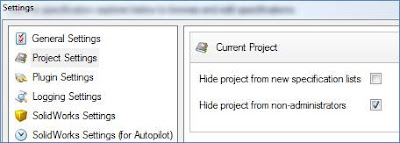
Now you can work on your test project without worrying about someone accidentally running specifications on it. When you get your test project ready for others to run, just uncheck this box.
Obviously, there will be times when you need to edit a project that end users are already using. Assuming that you cannot take the project offline while you make your edits, you may want to copy the project within the same group. The process is very similar to copying between groups. Naturally, there will be a few differences versus the two-group approach.
To copy the project, simply follow the procedures within the help file link that I mentioned above, but you can skip the steps related to importing the required components. This will mean that both projects will use the same SolidWorks files. With the new, copied project, change the project setting to hide it from non-administrators. Now you can modify your project till your heart's content.
When you are finished with the edits, you could turn off the non-admin access to the new and turn it on for the old. If you named your new project creatively, this might be all you have to do. For example, if my original project was called "Window Frame" and my copied project is named "Window Frame v2," then everyone will know that it is an updated copy. Of course, you could always delete the old and rename the new to match the original name so no one knows how many iterations you're going through. Naturally, you will need to make sure that neither project is in use prior to deleting and renaming.
Tuesday, November 16, 2010
Rapid Prototyping Saves the Day for Dad
One of the greatest things about working here at TriMech (outside of Bagel/Donut Day on Friday) is the exposure to a wide variety of tools. From the Entire SolidWorks Suite of tools to the 3D Printers and PDM Systems, we get to work with a lot of cool technology. Professionally, it's great exposure. Personally, it can bring some benefit too.
Case in point, My daughter has a battery-powered truck she inherited from her older brother.
 She was driving the truck around on Saturday when I heard it making an awful crunching noise. Apparently, it's been doing that for a while. I did some investigative work and determined the problem to be a stripped gear in the gearbox. It was missing 7 teeth along the outside. Thinking that I couldn't readily run down to Lowe's or Home Depot and pick up a power wheels rear end gear, I thought I would utilize the tools around me to find a solution to this devastating problem.
On Sunday, my 8-year old son and I took the bad gear and sat down with a pair of calipers; we modeled up a replacement gear utilizing SolidWorks 2011 and saved the file out as an STL. On Monday morning, I used the Fortus printer we have at TriMech to run a replacement gear. We happened to have a blue color cartridge in the machine, which makes the picture showing the replacement gear even easier to visualize.

The Blue gear was inserted into the train and it fit beautifully on the first try. I added a little grease, sealed it back up and had the truck running within 15 minutes. Although this was a personal use of the technologies we sell and support at TriMech, it's very indicative of the way we should be utilizing existing technology as Engineers to make better products and to cut down on LONG production cycles.
And now the kids think I can fix about anything...added bonus.
Friday, October 22, 2010
Free is for ME!
PART 1 OF 2 BY RYAN ZECK
Please write the check out to me, as I am about to show you some programs that will save you so much time you won’t believe it! Okay, now that I have your attention, the programs are free (but donations are accepted!). I love to learn new programs especially if they will help me do my job quicker and more efficiently so from time to time I look around the web and find a simple program to fill a specific need.
My hope is for these few programs to help you in several areas of YOUR job and to impress your friends or co-workers. In no way am I saying these programs run flawless as there is no software that can promise that. I have been using most of these for a while. Some of them work better than others, but I can’t promise they will work as I describe them as they are just freeware.
The first program I use EVERY day. In fact, it is the first program I use when I boot up my laptop. It is called Speed Launch. You can find it on the Microsoft Labs Website where all the Beta programs are shown. You may want to poke around on that website to find other programs to fit your own needs. I did test the “forgotten attachment detector” without success. However, the Speed Launch program has worked very well for me as I start up four different programs at one time. Some days I teach people how to use SolidWorks and have to start it along with my 3D Connexion program and my EPDM vault.

Synergy is a program a co-worker found and told me about. At first I didn’t think it was really needed but after using it, hands down one of the most cool things you can do with a computer….or really two computers. How many people still have their old computer? It still works, right? But you don’t have a KVM switch to get them to talk to each other, plus those switches are NOT free. So to use both of those computers you have to keep both keyboards and mice on the desk. I’m not sure about you, but in my opinion having to switch mice is kind of a pain.
Synergy takes this to a new level, as long as those two computers are networked, you can have one mouse and one keyboard that controls both computers with nothing more than a small program running. You do need to have the old monitor to make this work though.
Not only do they have a version for Windows 32 and 64bit, but they also have one for Linux, and Mac.
Find this program here: http://synergy-foss.org/pm/projects/synergy/tabs/welcome
So in Part 1 we talked about Speed Launch to get things started, Search Commands to keep us going and help find lost buttons, and Synergy to make use of our two computers and to impress friends! Next time we will take a look at a few other programs.
Feel free to email me at rzeck@trimech.com or find me on Linked In at http://www.linkedin.com/in/ryanzeck

PART 1 OF 2 BY RYAN ZECK
Please write the check out to me, as I am about to show you some programs that will save you so much time you won’t believe it! Okay, now that I have your attention, the programs are free (but donations are accepted!). I love to learn new programs especially if they will help me do my job quicker and more efficiently so from time to time I look around the web and find a simple program to fill a specific need.
My hope is for these few programs to help you in several areas of YOUR job and to impress your friends or co-workers. In no way am I saying these programs run flawless as there is no software that can promise that. I have been using most of these for a while. Some of them work better than others, but I can’t promise they will work as I describe them as they are just freeware.
The first program I use EVERY day. In fact, it is the first program I use when I boot up my laptop. It is called Speed Launch. You can find it on the Microsoft Labs Website where all the Beta programs are shown. You may want to poke around on that website to find other programs to fit your own needs. I did test the “forgotten attachment detector” without success. However, the Speed Launch program has worked very well for me as I start up four different programs at one time. Some days I teach people how to use SolidWorks and have to start it along with my 3D Connexion program and my EPDM vault.

To explain it a bit further, it is a way to open a document, program, or website with the flick of a finger. Check it out here: http://www.officelabs.com/projects/speedlaunch/Pages/default.aspx
The next useful program is “Search Commands,” also found on the Microsoft Office Labs website. So let’s be honest, when I started using Office 2007 (excel or word), I was a bit confused on where all my buttons went that I always used. This was also echoed by many of my friends who felt the same confusion and frustration. Let it be known that Microsoft also realized this problem and you can download “Search Commands” to help assist you to find the button you desire. It is a simple tab on the ribbon where you get a box to search like you would on the internet. As you type the buttons available change and narrow to what is most relevant. Pretty cool if you ask me, you should check it out here: http://www.officelabs.com/projects/searchcommands/Pages/default.aspx
Synergy is a program a co-worker found and told me about. At first I didn’t think it was really needed but after using it, hands down one of the most cool things you can do with a computer….or really two computers. How many people still have their old computer? It still works, right? But you don’t have a KVM switch to get them to talk to each other, plus those switches are NOT free. So to use both of those computers you have to keep both keyboards and mice on the desk. I’m not sure about you, but in my opinion having to switch mice is kind of a pain.
Synergy takes this to a new level, as long as those two computers are networked, you can have one mouse and one keyboard that controls both computers with nothing more than a small program running. You do need to have the old monitor to make this work though.
Not only do they have a version for Windows 32 and 64bit, but they also have one for Linux, and Mac.
Find this program here: http://synergy-foss.org/pm/projects/synergy/tabs/welcome
So in Part 1 we talked about Speed Launch to get things started, Search Commands to keep us going and help find lost buttons, and Synergy to make use of our two computers and to impress friends! Next time we will take a look at a few other programs.
Feel free to email me at rzeck@trimech.com or find me on Linked In at http://www.linkedin.com/in/ryanzeck
Wednesday, September 29, 2010
Design Tips for Turned Parts
By Mike Waller, Atlanta
As a SolidWorks Instructor with a background in manufacturing, I often get questions that are based as much on general manufacturing process principles as they are on SolidWorks design techniques. I always like to share this type of information because I hate to see designers get beat up by fussy machine shop operators because the way they designed their part doesn’t lend itself to the manufacturing process being used. One manufacturing process that is often misunderstood by 3D designers is turning, which is the name of the process by which parts are created on a lathe.
Although the typical designer will never need to use a lathe, it is important to understand the needs of a lathe operator so that you can convey your design intent in a meaningful and easily understood way when your parts are being produced by a turning operation. In case you are unfamiliar with it, turning is a general term used to describe the process of making parts on a lathe. You will also hear the term “turning center” used to describe full CNC controlled lathes. While we’re on the subject, from my experience, you should always avoid using the word “lathe” as a verb, as good machinists typically are very particular about terminology, and you might get a wrench thrown at you if you ask the wrong machinist to “lathe” a part. That would be like a SolidWorks professional being asked by a machinist to “CAD” something. You probably wouldn’t like it.
The first point that I would like to make involves the stock size. Whenever possible, avoid designing turned parts that will require a full-length reduction in diameter from standard stock sizes for the material being specified. An example is low carbon steel round bar. Since round bar is commonly available from US suppliers in fractional inch increments, it is often possible to avoid extra cost by designing around those standard stock sizes. For example, if the tolerance on the largest diameter of your part is not so tight that the stock supplier tolerances would not work, significant cost can be avoided by specifying standard stock size for the outer diameter. In other words, if a part’s max diameter isn’t otherwise critical and could just be “about” ¾ inch, don’t specify oddball diameters like 0.748”. That seems like a simple concept, but I often see designers that for whatever reason are working in mixed unit environments, and never notice that the tightly toleranced 19mm rod size they specified will cause the machinist to turn down the full length of a ¾” round bar to arrive at the final size they need. If instead, the designer specified 0.75” and the tolerance required for the part wasn’t excessively tight, there is a good chance that the machinist would start with ¾” round bar from a supplier like Ryerson Metals and since their tolerance for cold drawn, ground and polished carbon steel round bar up to 1” in diameter is +0.000/-0.001”, no further work would have to be performed for the overall diameter of the part. This one point can save extensive setup and hold costs down. An example of the tolerance sizes can be found here on Ryerson’s web page:
http://www.ryerson.com/stocklist/s-1928-Data-Tolerances-CF-Carbon-Bars.html.
The second area that I see a lot of designers overlook is with the design of shoulders on turned parts that engage into matching holes. Because it is nearly impossible to turn a square corner on a lathe, and since square corners introduce stress concentrations, it is a good idea to put a small, filleted relief groove into any square internal corners. This is especially important when a shoulder diameter is being used as an insertion stop for a hole and pin part that must mate together with sliding or press fits. The image below shows such a relief.
As a SolidWorks Instructor with a background in manufacturing, I often get questions that are based as much on general manufacturing process principles as they are on SolidWorks design techniques. I always like to share this type of information because I hate to see designers get beat up by fussy machine shop operators because the way they designed their part doesn’t lend itself to the manufacturing process being used. One manufacturing process that is often misunderstood by 3D designers is turning, which is the name of the process by which parts are created on a lathe.
Although the typical designer will never need to use a lathe, it is important to understand the needs of a lathe operator so that you can convey your design intent in a meaningful and easily understood way when your parts are being produced by a turning operation. In case you are unfamiliar with it, turning is a general term used to describe the process of making parts on a lathe. You will also hear the term “turning center” used to describe full CNC controlled lathes. While we’re on the subject, from my experience, you should always avoid using the word “lathe” as a verb, as good machinists typically are very particular about terminology, and you might get a wrench thrown at you if you ask the wrong machinist to “lathe” a part. That would be like a SolidWorks professional being asked by a machinist to “CAD” something. You probably wouldn’t like it.
The first point that I would like to make involves the stock size. Whenever possible, avoid designing turned parts that will require a full-length reduction in diameter from standard stock sizes for the material being specified. An example is low carbon steel round bar. Since round bar is commonly available from US suppliers in fractional inch increments, it is often possible to avoid extra cost by designing around those standard stock sizes. For example, if the tolerance on the largest diameter of your part is not so tight that the stock supplier tolerances would not work, significant cost can be avoided by specifying standard stock size for the outer diameter. In other words, if a part’s max diameter isn’t otherwise critical and could just be “about” ¾ inch, don’t specify oddball diameters like 0.748”. That seems like a simple concept, but I often see designers that for whatever reason are working in mixed unit environments, and never notice that the tightly toleranced 19mm rod size they specified will cause the machinist to turn down the full length of a ¾” round bar to arrive at the final size they need. If instead, the designer specified 0.75” and the tolerance required for the part wasn’t excessively tight, there is a good chance that the machinist would start with ¾” round bar from a supplier like Ryerson Metals and since their tolerance for cold drawn, ground and polished carbon steel round bar up to 1” in diameter is +0.000/-0.001”, no further work would have to be performed for the overall diameter of the part. This one point can save extensive setup and hold costs down. An example of the tolerance sizes can be found here on Ryerson’s web page:
http://www.ryerson.com/stocklist/s-1928-Data-Tolerances-CF-Carbon-Bars.html.
The second area that I see a lot of designers overlook is with the design of shoulders on turned parts that engage into matching holes. Because it is nearly impossible to turn a square corner on a lathe, and since square corners introduce stress concentrations, it is a good idea to put a small, filleted relief groove into any square internal corners. This is especially important when a shoulder diameter is being used as an insertion stop for a hole and pin part that must mate together with sliding or press fits. The image below shows such a relief.

Even if the turned down shoulder diameter on your part doesn’t engage into a hole, it is still a good idea to avoid sharp, square internal corners on turned parts, even if for strength related consideration alone. Try to design in a small fillet in this case. I recommend talking with your machinist to see what radius is preferred, based off available tooling and techniques and design all turned internal corners with a standard fillet size if there is no other compelling reason for a specific radius. This way, standard, off-the-shelf cutters can be used, thus avoiding custom radius sizes. Besides, such a feature is typically not so critical that an exact size is needed, and wouldn’t warrant and custom tool grinds to get a particular radius in.
Finally, all 3D CAD designers working with turned parts should avoid dimensioning turned diameter features with radius dimensions. Diameters are easy to measure with standard metrology tools like micrometers and calipers, and they are also very straight forward for the machinist to achieve during the machine setup. If you put radius type dimensions on a turned part, your machinist will think you’re just one of those “booksmart” designers that has no idea how things are actually made, and you’ll run the risk of the machinist doing various math operations to arrive at the dimensions they need to make your part. Although most machinists are plenty skilled in mathematics to handle such calculations, having them do it is just another place for errors to occur, and should be avoided. I always tell my students that the print for machined parts, regardless of the machining operation, should contain all dimensions necessary to manufacture the part, without doing any math. This concept even works in creating the design intent of your features and sketches in whatever 3D CAD system you use, regardless of the manufacturing process.
This article is by no means a complete set of guidelines for designing turned parts, but it is a brief description of how to avoid some of the major pitfalls that I have seen over the years. Hopefully, it will help you design better parts and gain some credibility with your machine shop team. If you are a designer that creates practical, manufacturable prints, most machinists will respond well and they can often get you out of a jam when you do make the inevitable mistake. Try to understand their needs, and take note when they are explaining why your widget is tough to make. They usually know a heck of a lot about their trade, and making their life easier whenever possible will save your company money.
Monday, September 27, 2010
Top 10 Uses for the 'Shift' Key in SolidWorks
by: Eman Kim
It seems like the 'Ctrl' key gets all the attention when running SolidWorks. I thought it be fun to focus on the unsung keyboard command, the 'Shift' key. Here are the Top 10 uses for the 'Shift' Key in SolidWorks in no particular order.
10. Move Aligned Views Together.
Aligned Drawing views will usually move along the alignment of their parent view. If you'd like to move a view and all other views aligned to that view together as a single selection, hold down the 'Shift' key with your click-and-drag.
9. Select a Range of Items
Like Windows, while holding the 'Shift' key you can select a range of items in the Feature Manager Tree. Select the first and last item you wish to select and the items in-between will also be selected.
8. Collapse Items
Quickly collapse all items in the Feature manager tree by selecting 'Shift'-'C'. Can be helpful if your Assembly tree navigation is getting out of hand and you need to get back to the top!
7. Zooming In
You can zoom out from the centroid of your model using the 'Z' key. 'Shift'-'Z' reverses this behavior and zooms you into the centroid of the model. Also, holding down the 'Shift' key while you click and drag with your middle mouse button will zoom you in and out of the centroid of your model
6. Rotating 90 degrees
Holding the 'Shift' key with your arrow keys will allow you to rotate the model 90 degrees in any direction.
5. Return to Last View
If you've ever miss rotated or moved out of a desirable view into one you're not to pleased with you can use 'Ctrl'-'Shift'-'Z' to get you back to your previous view.
4. Rotate Routing Components
When initially applying connectors, clips, and other routing systems components you can rotate them using the shift and left and right arrow keys. Of course the file will need a rotational axis in the feature manager tree to rotate the component.
3. Moving a Model Dimension Between Views
If you have a model dimension in one view you'd like to move to another, you can simply drag the dimension to the new drawing view while holding down the shift key. The dimension should just reattach itself to the appropriate edges after the drop.
2. Select Transparent Items
When working with a mixture of transparent and solid objects, selecting a desired edge or face can be difficult. By default, if a transparent object is over a solid object, SolidWorks will want to select the solid object. You can use the 'Shift' key to override this behaviour so that SolidWorks will select which ever item is closest to you regardless of their transparency.
1. Dimensioning Arcs
When dimensioning arcs, SolidWorks will alway default to the center of the arcs. Holding the 'Shift' Key, SolidWorks will snap to the closest min/max(quadrant) position when dimensioning arcs.
Next time, we'll focus on the Top 10 Uses for the 'Ctrl', 'Alt', and 'Tab' keys in SolidWorks! Catch you again.
Thursday, September 16, 2010
Dimension Printers with Dan Genovese

Since coming to work at TriMech, I’ve learned a lot about both the CAD industry and the rapid prototyping industry as well. Since becoming the “Expert” on 3-D Printers at TriMech, I have learned a lot about this technology. These machines are capable of a lot, but when it boils down to it, the technology itself is pretty easy to discuss. At a very high level, the benefits of 3D Printing include, but are not limited to the following:
• You can quickly produce prototypes of your models to see if they work as you expect!
• You can modify your model, print it again, and make sure it is ready to be produced!
• You can save valuable time and money whereas previously you might have to send your models off to expensive prototyping shops!
These are the most important benefits and selling points for the Dimension printers that we sell. Every time I go visit a customer who has a Dimension printer, I hear stories about how great of an investment their printer has been. From medical device companies able to put a prototype of a product into a surgeon’s hand before producing it to other industries producing low-volume production runs, it seems like everyone who buys one of these machines gets a great amount of use out of it.
Despite the obvious popularity of the machines, I find myself wondering where the process could go from here- how it could be expanded. A lot of people have seen the Dimension clip with Jay Leno where he uses a printer to create molds to build replacement parts for his old, no longer manufactured cars (if you haven’t seen it, check it out here, it’s actually pretty good). This clip is a great example of taking this technology to the next level beyond “just producing a prototype”
Most engineers know that despite the usefulness and power of CAD software like SolidWorks, sometimes you just can’t get the look and feel right for your designs, especially if the shape is more “organic”. But what if you already had a mock-up of a product, created by hand, and you needed to carry that concept through to actual production? With 3DScanning technology, you could scan the model and then send the part right into your CAD system. From there, you could use SolidWorks to create the mold around the part. In the last and final step, you would use the Dimension printer to create the mold for production runs, or simply to produce “X” number of low volume production parts from the original scan.
I’ve just scratched the surface of what can be accomplished with a Dimension 3D Printer. I think we are at a point in this product’s life cycle very similar to 20-30 years ago with Plotters. Back then, large plotters were sometimes viewed by engineering departments as “nice to have”. Pretty soon, their adoption rates made it pretty obvious that to generate the drawings from all electronic files we were rapidly creating, the plotter was going to be a necessity. This is the simple evolution of a next step, we’ve just added the third-dimension to the plot. Pretty soon, I believe these printers will be integral to every engineering department and down the road, companies will wonder how they ever functioned without them.
Thursday, August 26, 2010
SolidWorks and Apple: The Love Hate Love Relationship
by: Eman Kim
Today, it’s not uncommon for me to visit a client and see that they have proudly managed to run SolidWorks on a Mac. After all, the only thing that could rival the loyalty of a SolidWorks user would be that of an Apple products user. Besides being a zealous user base, there also seems to be this culture of cool and superiority that characterizes both Apple's products and users. You see it in everything from the way their products are marketed to how Apple users prominently display their shiny new toys. With this much cultural clout, you’d figure it would be natural that SolidWorks would have jumped on the bandwagon and released a version of their software that would natively run on Apple’s platform.Don’t hold your breath.
Below is a short history of SolidWorks and Apple’s 15 year love hate relationship.
1995 –SolidWorks 95 is born
As long as SolidWorks has been around, Mac users have attempted to run SolidWorks on a Mac. In the early days, the only way to run SolidWorks on a Mac was to emulate Windows. Users quickly discovered the inherent problems with running SolidWorks® this way. Unlike Word or Excel, SolidWorks® is truly a performance and resource demanding application. OpenGL graphic driver support was nearly non-existent in emulated environments. This, along with the limited amount of memory in early Macs hampered both performance and stability.

2001 – OS X
Apple made a dramatic change to their operating system and moved to a UNIX-like based OS X operating system. Later releases proved OS X to be a very capable and robust platform with a far stronger memory management system. This allowed for greater stability when running emulated environments, but users still needed to sort through the slew of hardware compatibility and performance issues when running SolidWorks.
2005 – SolidWorks eDrawings© on OS X
Collaborators rejoice! Despite not being able to create content, OS X Tiger users could at least view what their PC buddy was doing in SolidWorks®. What’s interesting to note was that the Mac versions of eDrawings© had features that its PC cousin originally did not have. Advanced print preview options as well as the ability to filter components by name came to the Mac version of eDrawings before finding their way onto the PC.
2006 – Intel, Boot Camp©, and Virtualization
In 2006, Apple Computer® walked away from its longstanding PowerPC platform. But what sent shockwaves through the computing community was Apple’s new relationship with long time hardware rival, Intel Corp. This new partnership meant that both PCs and Macs would contain similar hardware allowing Microsoft Windows to now run natively on a Mac.

To accomplish this, users simply need to use the Boot Camp© utility that comes with OS X Leopard and later OS X operating systems. The drawback with using Boot Camp© is the need to reboot whenever you need to change operating system environments.
In cases where users need to run both operating systems simultaneously, virtualization programs like VMWare Fusion or Parallels Desktop can be used to run Windows in a parallel operating system environment. Unlike earlier emulation software, the current virtualization products no longer need to emulate a PC’s hardware environment. This greatly improves system stability and performance. In regards to SolidWorks, the only sticking spot when running Boot Camp or a virtualized environment is the OpenGL® driver support and higher end graphic functions like RealView. Currently, SolidWorks® and its resellers officially do not support SolidWorks® in either Boot Camp© or a virtualized environment.
2007 - Steve Wozniak at SolidWorks World 2007
Co-founder of Apple Computer, Steve Wozniak was a keynote speaker at 2007's SolidWorks World Event. Though some optimistically speculated that Wozniak was going to announce iSolidWorks during his keynote, we instead got an insightful talk on the importance of synergy between products and their users.
2007 – Drawings Now© on iPhone
The SolidWorks Labs application, Drawings Now© allows users to view drawings via the web. Users simply upload their SolidWorks documents up to the web and anyone can review the documents from a capable browser…including the iPhone’s Safari.
2010 – SolidWorks World 2010 Announcement
Feb 4th, just days away from Valentine’s Day, it seemed like the perfect time for SolidWorks to announce a new partnership with Apple at SolidWorks World. The initial images that emerged during the general session made it appear that SolidWorks was going multi-platform. Later, we learned SolidWorks was instead going platformless as they would be venturing into the world of cloud computing. In short, regardless of your operating system, users would be able to run a cloud version of SolidWorks as a web application. Timetables were undefined and details were sparse, but it did raise a fair bit of excitement and speculation throughout the SolidWorks community about the future of platformless cloud computing.

So there you have it, a short rundown of the long history of SolidWorks and Apple. Aside from SolidWorks in the cloud, it appears the only native platform SolidWorks will run on in the near future will be a Windows based PC one. Sorry Apple users. Businesswise, it doesn’t make a whole ton of sense for SolidWorks to invest hefty development resources into a lone Mac version of SolidWorks. There’s just so much more SolidWorks needs to fix and develop and Apple takes up less than 8% of the computing market space…
though it is a very cool 8%.
Friday, August 20, 2010
SolidWorks Rx
While it would be great if all of our favorite applications ran without issue, it simply isn’t the case. It is not uncommon for me to issue crash reports for applications on my phone. Most of these applications range from a few kilobytes up to about 25 MB. Yet, no developer can anticipate all the combinations of running applications and other aspects of the health of my smartphone. Now, let’s expand this concept to an application the likes of SolidWorks. Now we’re talking about a program that is several gigabytes and installed on computers that vary wildly in both hardware and software configurations. We have all pushed our computers to the limit with SolidWorks at some time. RAM usage ramps up when we load large assemblies. Our CPUs are constantly hitting 100% regardless of the number of processors or cores we have. Additionally, the beautiful graphics we enjoy including real-time reflections and self-shadowing are only possible by giving our workstation-grade video cards a full workout. If we drove our cars the way we operate our computers, we would expect things to constantly break and wear out. Of course, we have no patience for our workhorse applications to just take a break when we’re in the middle of drafting our latest designs. So, while SolidWorks is always working to address reported problems with the software, they have provided a tool for us to help identify aspects of our computers that might be less than ideal habitats for SolidWorks. Enter SolidWorks Rx.
As is obvious from its name, SolidWorks Rx is a tool to help you diagnose issues with your computer that might cause issues while running SolidWorks. Let’s take a glance at some of its features.

The Home tab briefly describes the tools included within the utility. There’s also a couple of links to help you launch SolidWorks in one of two “Safe Modes.” These are intended to help you bypass things that commonly cause problems. By launching SolidWorks in Software OpenGL mode, you’ll be bypassing your graphics card and using your CPU to process graphics. Expect SolidWorks to run slower when you’re interacting with your model. Rotating and zooming will likely be significantly slower than you’re used to. This will, however, help you determine if your graphics card is possibly the source of issues. The other Safe Mode will, as it states, bypass your Tools/Options settings which are stored in the registry which, if damaged, can cause all manner of odd behavior. Now, just because these two Safe Modes are listed on the first screen of Rx, it does not mean that you should start troubleshooting by launching SolidWorks from these links. Instead, I suggest you start with the Diagnostics tab.
On the Diagnostics tab, you will find lots of information about your computer, especially as it pertains to SolidWorks health. Ideally, you will find all green checks along the list. However, it is quite common to see red or yellow X marks or a bubble with an I in it. Generally, the red X marks deserve the most immediate attention. You’ll find all kinds of useful information on this page including your graphics card model and driver version, how much RAM you have free and even if you have SolidWorks Toolbox loaded locally (a subject for another entry).
The Troubleshoot tab is quite handy for running pre-defined searches in the SolidWorks online Knowledge Base. When you click on any of these links, you will be taken to the KB inside the Customer Portal. You will need to have or create a Customer Portal account to access this information.
One of my favorite tabs is the System Maintenance tab. From here, you can configure a handful of tasks for Rx to run. These tasks can clean up temporary files, run checkdisk and also defragment a couple of drives. While these may seem like minor items, gigantic piles of temporary files and heavily fragmented drives can actually cause “Not Responding” messages while using SolidWorks as Windows may be scanning through thousands of files or waiting on a bouncing hard drive head searching the world over for your desired file or while searching for a place to store temporary data. This message is often misinterpreted as a crash (although that may be the case) when, in reality, Windows has just waiting longer than expected to hear communication from SolidWorks when Windows itself may be the culprit. Keeping close tabs on your temporary data and disk fragmentation is a simple, crucial step to keeping your computer running as expected. Once you have setup your tasks as you want, you can run them all at one time immediately or on a schedule. I have mine run every single day at noon. This way, I don’t forget to grab lunch while I’m plugging away. Note that SolidWorks does not need to be running for these tasks to execute. Since I run these every day, it takes no more than 10 minutes for Rx to tidy up my 500 GB HDD.
For repeatable issues that you are encountering, nothing surpasses the Problem Capture tab for helping tech support delve into what might be causing your problems. If you find yourself saying anything like “every time I click on this button in SolidWorks…” then the Problem Capture tab should be something you try out. The point of this feature is that you can have Rx record a video of your SolidWorks session, then optionally attach the video, some system information and even your SolidWorks files along with your description of how to reproduce the problem all packaged into a ZIP file. When you send this ZIP file to TriMech technical support, we can use it to diagnose or attempt to reproduce the problem. It is also invaluable if we need to submit the problem to SolidWorks Corp. Believe it or not, if you have just encountered a problem with SolidWorks, but you weren’t recording the session with Rx, you can still use Problem Capture to record some information about your system. Once you have captured a problem, the Files and Logs tab will be available so that you can see what was recorded and even playback the video.
Lastly, on the Addins tab, you can find a link to the Administration Guides on the Customer Portal and can even tag on links to launch any executable that you might want to group here. For instance, you might want to create a link to the SolidWorks Copy Options Wizard so that you can quickly save and load your SolidWorks options settings. You can also add a link to launch other diagnostic tools such as Performance Monitor or your favorite Resource Monitor.
For further assistance diagnosing your system or interpreting the data collected by SolidWorks Rx, contact your friendly TriMech support technician and share your Rx results with them.
As is obvious from its name, SolidWorks Rx is a tool to help you diagnose issues with your computer that might cause issues while running SolidWorks. Let’s take a glance at some of its features.
The Home tab briefly describes the tools included within the utility. There’s also a couple of links to help you launch SolidWorks in one of two “Safe Modes.” These are intended to help you bypass things that commonly cause problems. By launching SolidWorks in Software OpenGL mode, you’ll be bypassing your graphics card and using your CPU to process graphics. Expect SolidWorks to run slower when you’re interacting with your model. Rotating and zooming will likely be significantly slower than you’re used to. This will, however, help you determine if your graphics card is possibly the source of issues. The other Safe Mode will, as it states, bypass your Tools/Options settings which are stored in the registry which, if damaged, can cause all manner of odd behavior. Now, just because these two Safe Modes are listed on the first screen of Rx, it does not mean that you should start troubleshooting by launching SolidWorks from these links. Instead, I suggest you start with the Diagnostics tab.
On the Diagnostics tab, you will find lots of information about your computer, especially as it pertains to SolidWorks health. Ideally, you will find all green checks along the list. However, it is quite common to see red or yellow X marks or a bubble with an I in it. Generally, the red X marks deserve the most immediate attention. You’ll find all kinds of useful information on this page including your graphics card model and driver version, how much RAM you have free and even if you have SolidWorks Toolbox loaded locally (a subject for another entry).
The Troubleshoot tab is quite handy for running pre-defined searches in the SolidWorks online Knowledge Base. When you click on any of these links, you will be taken to the KB inside the Customer Portal. You will need to have or create a Customer Portal account to access this information.
One of my favorite tabs is the System Maintenance tab. From here, you can configure a handful of tasks for Rx to run. These tasks can clean up temporary files, run checkdisk and also defragment a couple of drives. While these may seem like minor items, gigantic piles of temporary files and heavily fragmented drives can actually cause “Not Responding” messages while using SolidWorks as Windows may be scanning through thousands of files or waiting on a bouncing hard drive head searching the world over for your desired file or while searching for a place to store temporary data. This message is often misinterpreted as a crash (although that may be the case) when, in reality, Windows has just waiting longer than expected to hear communication from SolidWorks when Windows itself may be the culprit. Keeping close tabs on your temporary data and disk fragmentation is a simple, crucial step to keeping your computer running as expected. Once you have setup your tasks as you want, you can run them all at one time immediately or on a schedule. I have mine run every single day at noon. This way, I don’t forget to grab lunch while I’m plugging away. Note that SolidWorks does not need to be running for these tasks to execute. Since I run these every day, it takes no more than 10 minutes for Rx to tidy up my 500 GB HDD.
For repeatable issues that you are encountering, nothing surpasses the Problem Capture tab for helping tech support delve into what might be causing your problems. If you find yourself saying anything like “every time I click on this button in SolidWorks…” then the Problem Capture tab should be something you try out. The point of this feature is that you can have Rx record a video of your SolidWorks session, then optionally attach the video, some system information and even your SolidWorks files along with your description of how to reproduce the problem all packaged into a ZIP file. When you send this ZIP file to TriMech technical support, we can use it to diagnose or attempt to reproduce the problem. It is also invaluable if we need to submit the problem to SolidWorks Corp. Believe it or not, if you have just encountered a problem with SolidWorks, but you weren’t recording the session with Rx, you can still use Problem Capture to record some information about your system. Once you have captured a problem, the Files and Logs tab will be available so that you can see what was recorded and even playback the video.
Lastly, on the Addins tab, you can find a link to the Administration Guides on the Customer Portal and can even tag on links to launch any executable that you might want to group here. For instance, you might want to create a link to the SolidWorks Copy Options Wizard so that you can quickly save and load your SolidWorks options settings. You can also add a link to launch other diagnostic tools such as Performance Monitor or your favorite Resource Monitor.
For further assistance diagnosing your system or interpreting the data collected by SolidWorks Rx, contact your friendly TriMech support technician and share your Rx results with them.
Monday, August 16, 2010
SolidWorks Sustainability
SolidWorks Sustainability – Really
When I first heard that SolidWorks was going to release a Sustainability product I can honestly say that I was less than thrilled. I think that it has been equally dismissed as heralded in the general press and the online world. I personally have seen some keen interest in the SustainabilityXpress version as well as the stand-alone product and so I thought that I would share my experiences with you.
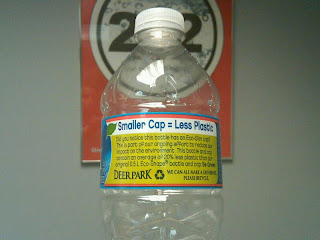
You may already know that the technology is pretty well known and regarded. The data used by SolidWorks Sustainability is provided by PE International of Stuttgart, Germany. They have provided software and consulting services in sustainable design and LCA for almost 20 years. As I write this I am drinking out of a Deer Park water bottle that on the label talks about using an Eco-Slim cap that uses less plastic. In fact, this press release earlier this year titled SolidWorks Sustainability wins Design News Golden Mousetrap Award 2010 for Innovation and Creativity, shows some good promise.
Life Cycle Assessment, LCA, is the analysis that looks at a product’s entire life, including ore extraction, material production, manufacturing, product use, end-of-life disposal, and all of the transportation that occurs between these stages. This is potentially a simple way to include some additional information into your design cycle to help you make better decisions. Information is power.
The information that you will be able to review is Air Acidification, Carbon Footprint, Total Energy Consumed, and Water Eutrophication. If you would like a more detailed description of these metrics, please review the Sustainability website. The important point to remember here is that these are concerns that help provide you insight into what impact that you have by choosing manufacturing aspects of your design and can give you a qualitative assessment of your choices.
So, give the SustainabilityXpress product a shot; you can find it under the Tools toolbar and see if this is another tool that you can use to provide you some insight into your overall design process.
Note: If you’re using SolidWorks 2009, you can download SolidWorks SustainabilityXpress at SolidWorks Labs.
When I first heard that SolidWorks was going to release a Sustainability product I can honestly say that I was less than thrilled. I think that it has been equally dismissed as heralded in the general press and the online world. I personally have seen some keen interest in the SustainabilityXpress version as well as the stand-alone product and so I thought that I would share my experiences with you.
You may already know that the technology is pretty well known and regarded. The data used by SolidWorks Sustainability is provided by PE International of Stuttgart, Germany. They have provided software and consulting services in sustainable design and LCA for almost 20 years. As I write this I am drinking out of a Deer Park water bottle that on the label talks about using an Eco-Slim cap that uses less plastic. In fact, this press release earlier this year titled SolidWorks Sustainability wins Design News Golden Mousetrap Award 2010 for Innovation and Creativity, shows some good promise.

Life Cycle Assessment, LCA, is the analysis that looks at a product’s entire life, including ore extraction, material production, manufacturing, product use, end-of-life disposal, and all of the transportation that occurs between these stages. This is potentially a simple way to include some additional information into your design cycle to help you make better decisions. Information is power.
The information that you will be able to review is Air Acidification, Carbon Footprint, Total Energy Consumed, and Water Eutrophication. If you would like a more detailed description of these metrics, please review the Sustainability website. The important point to remember here is that these are concerns that help provide you insight into what impact that you have by choosing manufacturing aspects of your design and can give you a qualitative assessment of your choices.
So, give the SustainabilityXpress product a shot; you can find it under the Tools toolbar and see if this is another tool that you can use to provide you some insight into your overall design process.
Note: If you’re using SolidWorks 2009, you can download SolidWorks SustainabilityXpress at SolidWorks Labs.
Monday, August 9, 2010
Weldments...and more
Weldments have been around for quite a long time in SolidWorks; introduced in the release of SolidWorks 2004, Weldments make it much easier to create structural steel assemblies. In this posting, I’ve taken the opportunity to answer a few questions about the tool and to highlight some things that might help even the most experienced of users to get the full use of this extremely powerful tool.
Q: What is a “Weldment”?
A: That’s a great question. Every time I type “Weldment”, spellchecker goes crazy and says it doesn’t exist as a word. A “Weldment” is typically structural steel or aluminum members that form some kind of framework.
Q: Okay, great…I don’t do structural steel shapes, I’ll just deactivate “Weldments” from my Command Manager
A: Hold on just a second….the “Weldment functionality” in SolidWorks can be used to quickly create any model where a typical profile follows a path. Think of something like a deck. Decks are typically constructed using a few different size board profiles (2 x 4, 2 x 6,etc). We can use SolidWorks to sketch the path for all the boards and then lay in the profiles using the “Structural Member tool”. The great thing is that Weldments can be used to produce a cut list (similar to Bill of Materials for assemblies), and in this example you could take it down to your favorite hardware supply store to purchase your materials.

Q: When I activate the Structural Member command, there doesn’t appear to be a lot of options for profiles to follow my path.
A: That is correct. You may have to create profiles for “non-steel” shapes such as 2 x 4’s, etc., but if you do it once, that option will always be available for you down the road. It’s a pretty easy process to create those profiles. Typically, if you used the default install location, your weldment profiles will be located in some area such as C:\Program Files\SolidWorks Corp\SolidWorks\data\weldment profiles
You can always open up and modify an existing profile (saving it as a different name, etc.); you can see below that it’s a pretty basic sketch that you are working with. The subtle difference is that this is saved as a library part vs. a regular part file.


Q: All we do is structural steel shapes and we use a lot of them. Why can’t SolidWorks just include them in a library for us?
A: Actually…they did. SolidWorks included the profiles, but there is a little process to add them in. In fact, you must first download the profiles from the internet. My guess is that the reason they are not included on the default install is that the size of all those profiles eats up a good amount of disk space. If you download the “Ansi Inch” group alone, it’s over 30MB.
Go over to your design library area in the Task Pane, and browse the folder at the bottom “SolidWorks Content”. There, you will see a variety of profiles. If you hover above the icon, then instructions will pop up that tell you to hold “Control” and left click to download the zip file. Download the file to a location you like. After the download, you will need to unzip the files and locate them in the Weldment profile directory (described above). If you have done that correctly, you will get all the weldment profiles you could ever want or need when you go back into the Structural Member tool.
Q: What is a “Weldment”?
A: That’s a great question. Every time I type “Weldment”, spellchecker goes crazy and says it doesn’t exist as a word. A “Weldment” is typically structural steel or aluminum members that form some kind of framework.

Q: Okay, great…I don’t do structural steel shapes, I’ll just deactivate “Weldments” from my Command Manager
A: Hold on just a second….the “Weldment functionality” in SolidWorks can be used to quickly create any model where a typical profile follows a path. Think of something like a deck. Decks are typically constructed using a few different size board profiles (2 x 4, 2 x 6,etc). We can use SolidWorks to sketch the path for all the boards and then lay in the profiles using the “Structural Member tool”. The great thing is that Weldments can be used to produce a cut list (similar to Bill of Materials for assemblies), and in this example you could take it down to your favorite hardware supply store to purchase your materials.

Q: When I activate the Structural Member command, there doesn’t appear to be a lot of options for profiles to follow my path.
A: That is correct. You may have to create profiles for “non-steel” shapes such as 2 x 4’s, etc., but if you do it once, that option will always be available for you down the road. It’s a pretty easy process to create those profiles. Typically, if you used the default install location, your weldment profiles will be located in some area such as C:\Program Files\SolidWorks Corp\SolidWorks\data\weldment profiles
You can always open up and modify an existing profile (saving it as a different name, etc.); you can see below that it’s a pretty basic sketch that you are working with. The subtle difference is that this is saved as a library part vs. a regular part file.


Q: All we do is structural steel shapes and we use a lot of them. Why can’t SolidWorks just include them in a library for us?
A: Actually…they did. SolidWorks included the profiles, but there is a little process to add them in. In fact, you must first download the profiles from the internet. My guess is that the reason they are not included on the default install is that the size of all those profiles eats up a good amount of disk space. If you download the “Ansi Inch” group alone, it’s over 30MB.
Go over to your design library area in the Task Pane, and browse the folder at the bottom “SolidWorks Content”. There, you will see a variety of profiles. If you hover above the icon, then instructions will pop up that tell you to hold “Control” and left click to download the zip file. Download the file to a location you like. After the download, you will need to unzip the files and locate them in the Weldment profile directory (described above). If you have done that correctly, you will get all the weldment profiles you could ever want or need when you go back into the Structural Member tool.

Wednesday, July 7, 2010
DraftSight

Dassault Systemes recently released a nifty tool called DraftSight to help manage your legacy 2D Data after converting to a 3D Tool. Here are some FAQs regarding the release.
Q: What is Draftsight?
A: Draftsight is an AutoCAD LT clone. It reads current versions of DWG and DXF including AutoCAD 2010. It is offered as a free application by Dassault and can be downloaded at the following link www.3ds.com/products/draftsight/#vid1
Q: How do I get support for Draftsight?
A: Draftsight Support is handled through a "Draftsight community". There is free documentation to get you started if you are unfamiliar with using the tool as well. There is an "Enterprise License Subscription" which can be purchased for $250.00 which entitles you to:
- Telephone and email support
- Network licensing
- API Support-LISP
- Remote Desktop Support
- All of the online training materials offered through online support
Q: What platforms will Draftsight run on?
A: Currently-Windows 7, XP, and Vista. Mac availability should be available later this year.
Q: Who can download this application?
A: Anybody! No need to own SolidWorks or any other CAD at all. Download and enjoy.
In summary, this tool is meant to ease the burden of maintaining a 2D tool when you convert to 3D Design just so you can modify legacy files in their native format (e.g. change a note, stretch a quick dimension, etc.) It is also handy for knocking out a quick drawing that is more suited to 2D such as a P&ID or Electrical Schematic when you are more comfortable in an AutoCAD-like interface.
Thursday, June 17, 2010
First TriMech Solutions Blog
Welcome to the first blog from TriMech Solutions.
The first question is why should I read this blog? That's a great question. I'm not sure I have the answers, but I'll do my best to keep the information flowing, but also to keep this a light and entertaining read.
Okay, so I avoided the question somewhat. Let's just say the topics will range from "goings on" at TriMech to maybe some little technical nuggets on SolidWorks, otherwise known as Tips and Tricks.
So let's kick off this blog with a brief introduction to TriMech Solutions. TriMech has been a SolidWorks Partner for over 10 years providing SolidWorks Software, Training, and Support for over 2500 Clients during that time. The TriMech Corporate Headquarters is located in Richmond, Virginia, but there are Satellite offices complete with local technical resources and training facilities in:
Pittsburgh, PA
Columbia, MD
Waynesboro, VA (CAM)
Durham, NC
Charlotte, NC
Atlanta, GA
Complimenting the SolidWorks Solution, TriMech also has a team of recruiters that can help you find talented individuals on a contract, temporary, or permanent basis. Over the last 8 years, the requirements they have filled range from the obvious "SolidWorks Designer" to positions focused in the Electrical, Software, and Manufacturing fields.
In addition to providing assistance to locate resources, TriMech Services offers the ability to do small project based engineering work. Typical examples include light design work, reverse engineering services, and FEA analysis.
Our Waynesboro office offers expertise in CAM solutions and year after year continues to be the number one reseller nationwide of FeatureCAM.
So that's a little about TriMech. 50+ dedicated individuals spanned across the mid-Atlantic providing assistance to companies who need engineering help. We have some exciting events coming up at TriMech. Click here for more details http://www.trimechsolutions.com/events
The first question is why should I read this blog? That's a great question. I'm not sure I have the answers, but I'll do my best to keep the information flowing, but also to keep this a light and entertaining read.
Okay, so I avoided the question somewhat. Let's just say the topics will range from "goings on" at TriMech to maybe some little technical nuggets on SolidWorks, otherwise known as Tips and Tricks.
So let's kick off this blog with a brief introduction to TriMech Solutions. TriMech has been a SolidWorks Partner for over 10 years providing SolidWorks Software, Training, and Support for over 2500 Clients during that time. The TriMech Corporate Headquarters is located in Richmond, Virginia, but there are Satellite offices complete with local technical resources and training facilities in:
Pittsburgh, PA
Columbia, MD
Waynesboro, VA (CAM)
Durham, NC
Charlotte, NC
Atlanta, GA
Complimenting the SolidWorks Solution, TriMech also has a team of recruiters that can help you find talented individuals on a contract, temporary, or permanent basis. Over the last 8 years, the requirements they have filled range from the obvious "SolidWorks Designer" to positions focused in the Electrical, Software, and Manufacturing fields.
In addition to providing assistance to locate resources, TriMech Services offers the ability to do small project based engineering work. Typical examples include light design work, reverse engineering services, and FEA analysis.
Our Waynesboro office offers expertise in CAM solutions and year after year continues to be the number one reseller nationwide of FeatureCAM.
So that's a little about TriMech. 50+ dedicated individuals spanned across the mid-Atlantic providing assistance to companies who need engineering help. We have some exciting events coming up at TriMech. Click here for more details http://www.trimechsolutions.com/events
Subscribe to:
Posts (Atom)


 Posts
Posts


